> For the complete documentation index, see [llms.txt](https://docs.tomat.ai/llms.txt). Markdown versions of documentation pages are available by appending `.md` to page URLs; this page is available as [Markdown](https://docs.tomat.ai/getting-started/faq.md).
# FAQ
{% hint style="info" %}
Can't find the correct answer please ask our community in Slack [#general\_chat](https://join.slack.com/t/tabulaio/shared_invite/zt-2cugjcmpx-IDV_U4ga8mQ26J3W3kT6_g) channel.
{% endhint %}
### APP USAGE
What’s the difference between flows and jobs?
The flow is a streamlined process that transforms your data, beginning with the "Source" node and ending with the "Output" node. This is similar to a file in traditional applications.
You can create new flows, rename them, make duplicates, export them, and delete them. Each table displayed within the flow is simply a preview of the final result and is not saved.
A job is a process of executing the entire flow and saving the output in a file.
Which data transformation features does Tomat have?
We cover all SQL features and some more such as auto-flattening JSON.
How do I run the job?
When you have completed designing the flow and wish to save the result, click on the "Run" button located in the top right corner.
What is going on when I press Run button?
The computation process will begin, utilizing either cloud resources or your local computer, depending on the destination specified in the "Output" node.
Where does Tomat execute my flow?
The choice of resources for flow execution depends on the configuration of the "Source" and "Output" nodes. If Snowflake or PostgreSQL is connected, Tomat will execute the flow using their resources.
If "Local File" is selected, execution will take place on your computer. To ensure proper job execution, the Tomat app must be running, and the computer should not be in sleep mode.
How does Tomat process data, does it push any data to the server?
No, the application only verifies your credentials during the initial launch.
Therefore, it is safe to use sensitive information in your flows as all data is stored on your local computer. We are actively working on implementing cloud features.
Does Tomat download my data from a warehouse or DB?
Yes, the app downloads a small sample of data to generate a table preview in design mode. This sample data is stored on your local computer where Tomat is running.
All the transformations execute utilizing warehouse or DB resources.
I have a large .CSV file that I cannot open with Excel. Could Tomat open it?
Yes, Tomat can open it no matter the size! The default sampling is 10,000 rows, but you can change it on the Explorer page
Can Tomat work with BigData, large files, or tables?
Yes, handling large databases is one of our main priorities. If you encounter unique problems when working with large databases, please report this issue in the [#general\_chat](https://join.slack.com/t/tabulaio/shared_invite/zt-2cugjcmpx-IDV_U4ga8mQ26J3W3kT6_g) channel.
Could I create a custom function to reuse in the future?
Yes, we currently support scalar user-defined functions. To create them, please follow these instructions.
It is important to note that any changes should only be made if you are fully aware of what you are doing. Remember to only include functions that are already working in the `body`.
You can find custom-created functions in the directory provided. They are provided as examples. Open the \*.json file in your preferred text editor (such as Notepad++ or Sublime), modify the parameters, and save with a new name. Restart Retable and use them.
* **For Mac OS:** “/Users/%username%/Library/Application Support/tomat/latest/udfs”
* **For Windows:** “C:\Users\\%username%\AppData\Roaming\tomat\latest\udfs”
*Where "`%username%`" is the name of the user.*
### INTEGRATIONS
Can I connect {sourcename} to Tomat?
The application is currently in closed beta and undergoing heavy development. At this time, we have connectors for PostgreSQL and Snowflake. You can export the necessary tables from your database in \*.csv format and import them into Tomat. MS Excel \*.xslx format is also supported.
It's important to note that \*.xslx files will only work if there are no Snowflake/PostgreSQL sources in the current flow.
We plan to provide more connectors in future releases. To stay updated on product developments and share feedback on which integrations you need the most, join our [Slack Channel](https://join.slack.com/t/tabulaio/shared_invite/zt-2cugjcmpx-IDV_U4ga8mQ26J3W3kT6_g) for Data Analysts and Engineers.
How many data sources can I add?
Theoretically, unlimited sources can be added. To be more precise, you can add up to 1024 different Source nodes.
Which sources or target connectors does Tomat have?
We provide full support for PostgreSQL and Snowflake connectors as sources, targets, and for executing flows. Additionally, we support CSV and \*.xslx as a source and target.
### TROUBLESHOOTING
The application does not run on Windows
For smooth functioning of our application on Windows OS, the Microsoft Visual C++ Redistributable library needs to be present in your system. Unfortunately, this library may be missing in some systems causing a disruption to the use of our product.
Here is a simple step-by-step guide on how you can rectify this:
1. Visit the Microsoft official website or click [here](https://learn.microsoft.com/en-us/cpp/windows/latest-supported-vc-redist?view=msvc-170) to directly navigate to the download page of Microsoft Visual C++ Redistributable.
2. Initiate the download process for the redistributable library that corresponds to your particular version of Windows OS.
3. Once downloaded, install the Microsoft Visual C++ Redistributable library by following the on-screen instructions.
4. After successfully installing the library, restart your system to complete the installation process.
5. Now, continue with the installation or running of the Tomat app.
Please note that this issue doesn't affect Mac OS users and thus these instructions are only applicable to Windows users.
Unknown authentication error during login
If you're encountering an Unknown Authentication Error, it could be due to incomplete authentication steps.
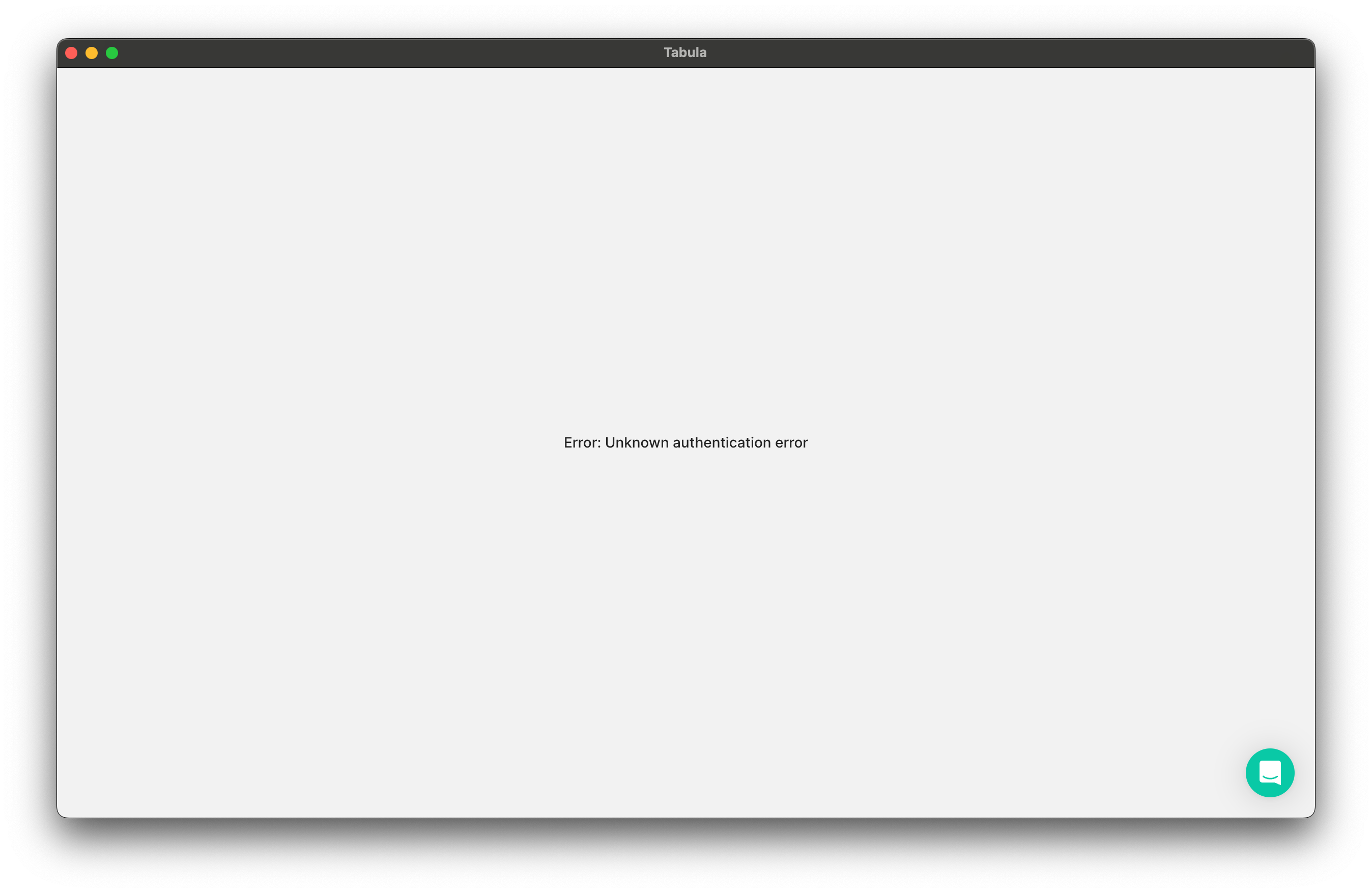 After you've installed and opened the app, you should see a 'Sign In' button. Once clicked, a browser window will appear with a login page. Depending on your method of registration, use the Email and Password fields if you've set a password from the registration email link. Conversely, if registered via Google mail, use the Google account login button.
Upon successful signing in, a popup should appear - it is crucial to click on 'Open Tomat' to access the app's home page. Avoid switching the authorization window or delaying to press the 'Open Tomat' button because the authorization token has a limited lifespan. Delays may lead to the Unknown Authentication Error.
In case you're unable to move past the Unknown Authentication Error screen, simply refresh the page by selecting **View** -> **Reload** or restart the app. Then, repeat the authorization steps.
After you've installed and opened the app, you should see a 'Sign In' button. Once clicked, a browser window will appear with a login page. Depending on your method of registration, use the Email and Password fields if you've set a password from the registration email link. Conversely, if registered via Google mail, use the Google account login button.
Upon successful signing in, a popup should appear - it is crucial to click on 'Open Tomat' to access the app's home page. Avoid switching the authorization window or delaying to press the 'Open Tomat' button because the authorization token has a limited lifespan. Delays may lead to the Unknown Authentication Error.
In case you're unable to move past the Unknown Authentication Error screen, simply refresh the page by selecting **View** -> **Reload** or restart the app. Then, repeat the authorization steps.
Where can I find local logs to attach with my feedback?
The log files a hosted below. If an error occurs during a job execution you can find logs on the job page `Three dot button → Show logs`.
Locating the folder where log files are stored can be a challenging task, particularly if the option to hide system files and folders is enabled in the operating system's settings.
**For Mac OS:**
1. Open any folder in Finder.
2. Press `Command + Shift + Period`.
3. See the hidden files appear in the folder.
4. Navigate to “`/Users/%username%/Library/Application Support/tomat/latest/logs`”
For Windows 10:
1. Open File Explorer from the taskbar.
2. Select `View → Options → Change folder and search options`.
3. Select the `View` tab and, in `Advanced settings`, select `Show hidden files, folders, and drives` and OK.
4. Navigate to “`C:\Users\%username%\AppData\Roaming\tomat\latest\logs`”
**For Windows 11:**
1. Open File Explorer from the taskbar.
2. Select `View → Show → Hidden items`.
3. Navigate to “`C:\Users\%username%\AppData\Roaming\tomat\latest\logs`”
Where "`%username%`" is your name of the user.
{% hint style="info" %}
Can't find the correct answer please ask our community in Slack [#general\_chat](https://join.slack.com/t/tabulaio/shared_invite/zt-2cugjcmpx-IDV_U4ga8mQ26J3W3kT6_g) channel.
{% endhint %}